If you have a Custom PDF you would like your clients to view when using the Client Portal and/or JobLink you are able to enable this for each Form Template. Form Actions can also be created to only show the Custom PDF when needed once the form has met certain conditions.
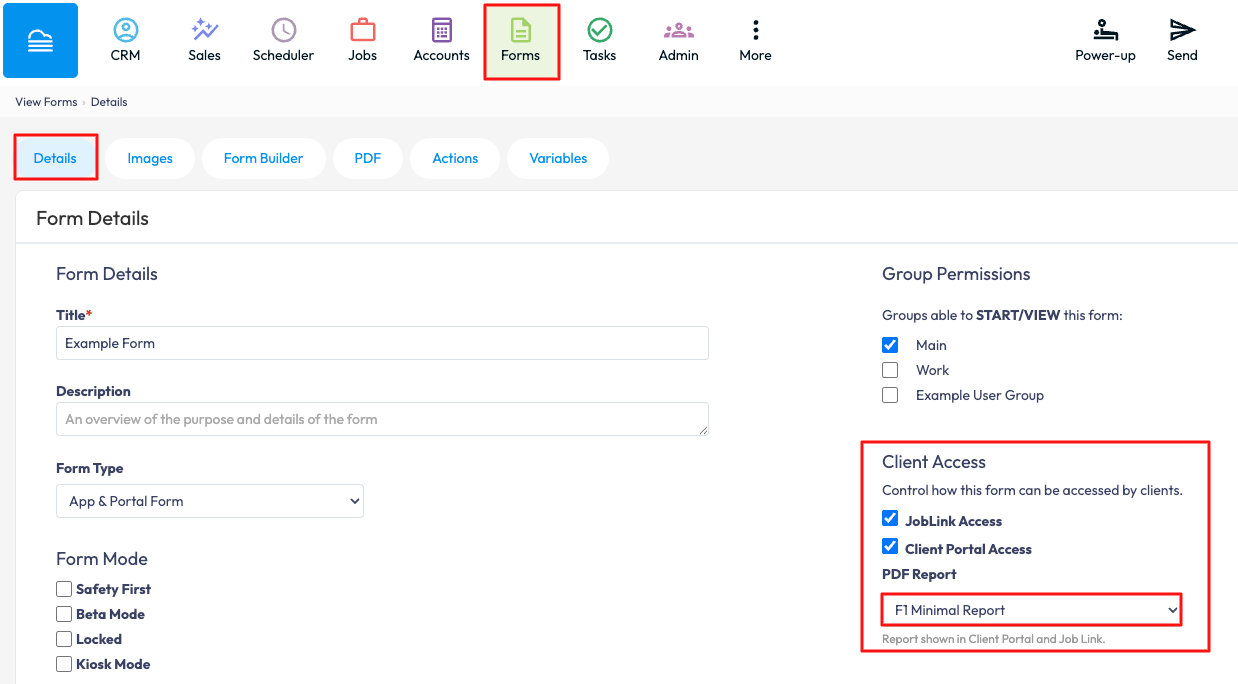
To set this up in the Web Portal > Forms > Existing Form Templates > Select the relevant Form Template > On the Details page under Client Access select how the client can view the form (through Client Portal/JobLink) > Select the PDF from the PDF dropdown > Save Details.
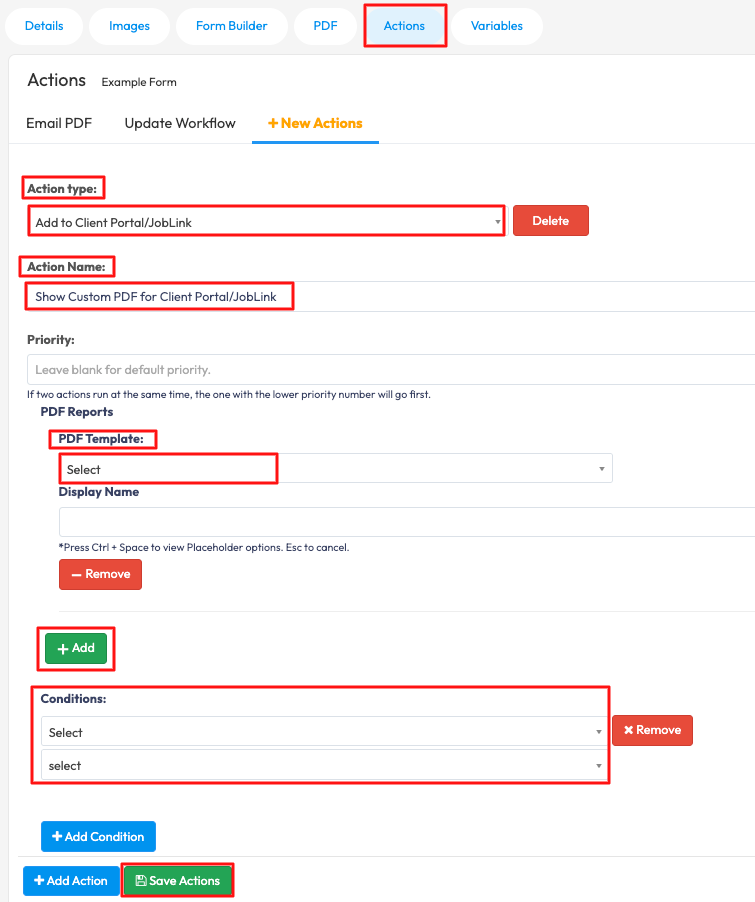
To set up a Form Action to show the Custom PDF only when needed through the Web Portal > Forms > Existing Form Templates > Select the relevant Form Template > Actions > + New Action > Select Add to Client Portal/JobLink as the Action Type > Name the action > Select the PDF Template from the dropdown > You will be able to add a Display Name for the PDF > + Add to create Form Conditions > Once the Conditions have been created > Save Actions.